Plan cuts, review remnants, digitize cutting
DDL offers two access points for digital cutting: the handheld scanner app for single slabs and simple cuts directly at the material, and project planning for complex projects with DXF plans and yield optimization. This page covers the mobile cutting workflow with the handheld scanner app.


What DDL delivers for digital cutting
From visual cuts to barcode labeling, all cutting processes in one workflow.
Plan cuts directly on the slab image
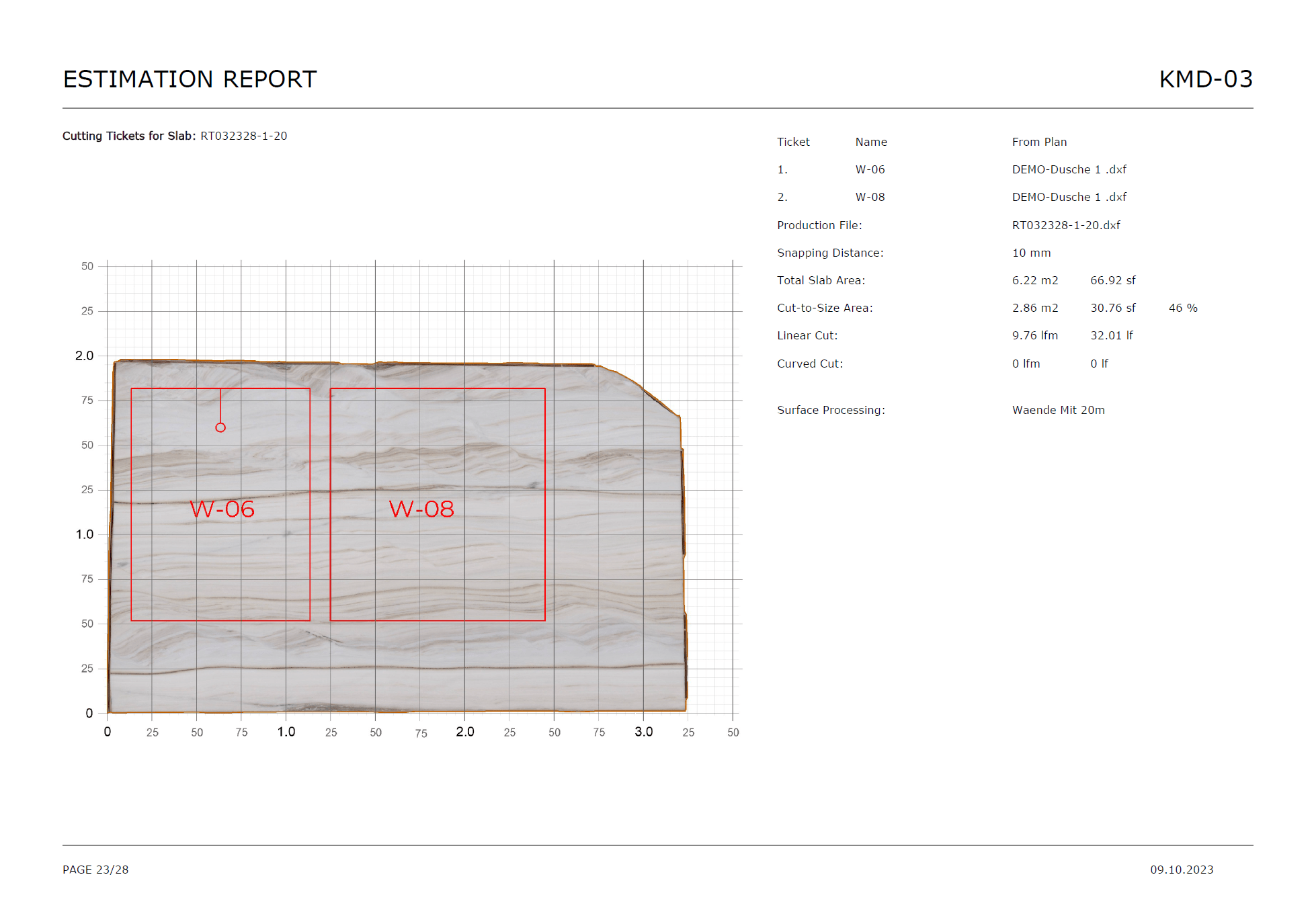
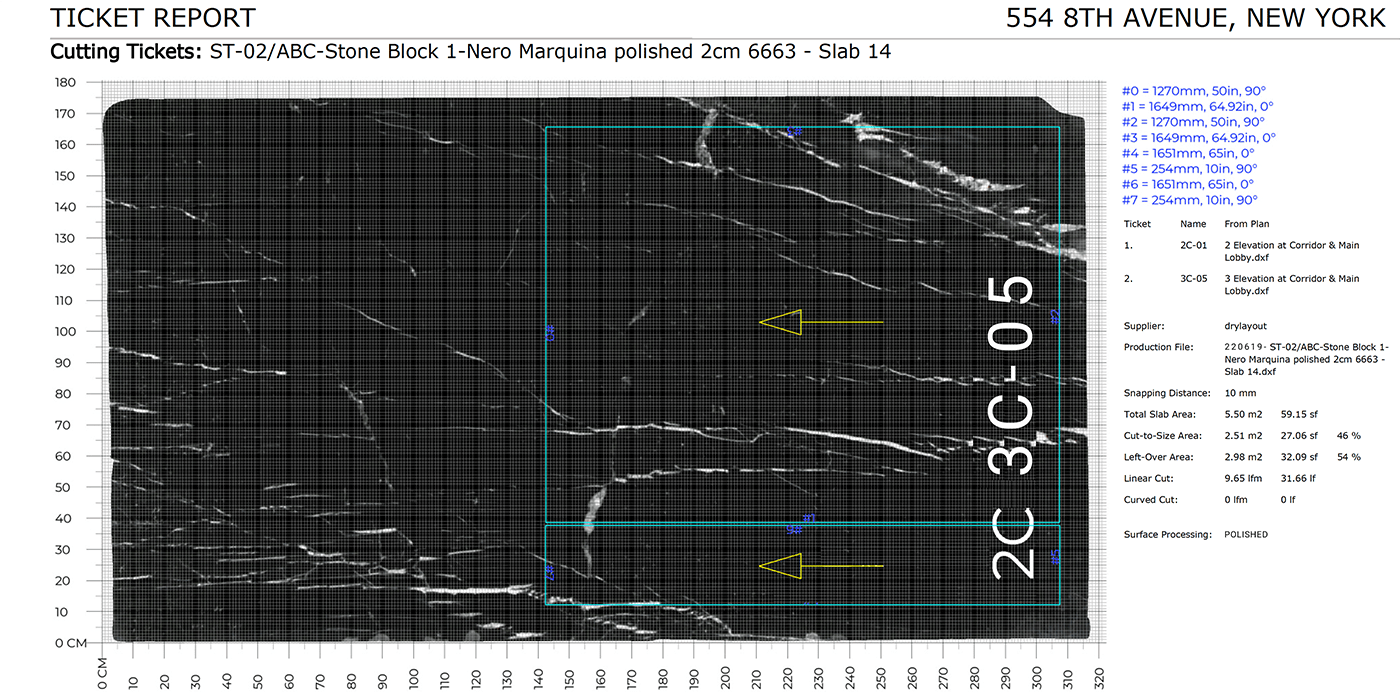
The editor works visually instead of relying on lists or hand sketches. Cuts are planned directly on the slab photo.
L-cuts for countertops
L-cuts for kitchen countertops and other special shapes can be captured directly in the workflow.
Add parts list and arrange on slab
Add a parts list to the slab and arrange parts on the slab image. Parts can also be defined directly by width and height.
Offcuts automatically returned to inventory
Offcuts and remnants are automatically returned to warehouse stock. Cut parts are assigned to orders.
Continue with barcodes after cutting
Labeling and traceability continue immediately after the cut.
For complex projects: use project planning
Large projects with DXF plans, waste/yield metrics and target quotas set before project start belong in project planning. Single slabs and simple cuts: handheld scanner app.
How digital cutting works
From material to labeling, in four clear steps.
Select the material
The correct slab is opened in the mobile workflow and assigned to the job.
Define cuts or parts
Cut lines or part dimensions are entered directly in the cutting module.
Review remnants
The offcut review determines what should be kept and how work continues.
Label and continue
Barcodes and follow-up processes connect immediately after cutting.
Every cut, a process

Plan cuts visually on the material
In the cutting module of the handheld scanner app, cuts are placed directly on the slab image. L-cuts for countertops, straight cuts and parts lists can be intuitively arranged on the slab photo.
- Place cut lines directly on the slab view
- L-cuts for countertops and straight cuts
- Arrange parts list on the slab image
Offcuts automatically returned to inventory
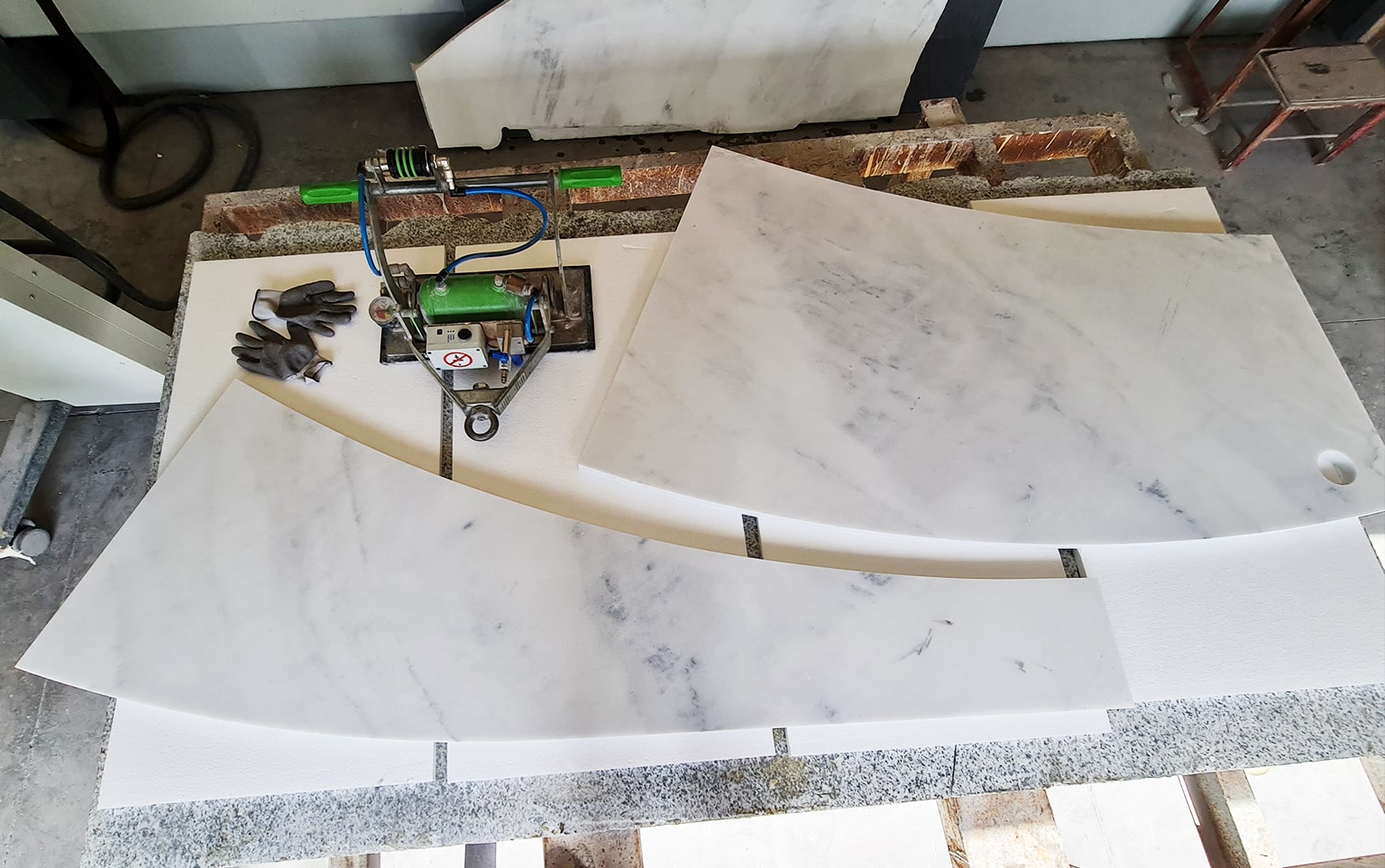
After cutting, offcuts and remnants are automatically returned to warehouse stock. Cut parts are assigned to orders. This keeps inventory always up to date.
- Offcuts automatically returned to inventory
- Cut parts assigned to orders
- Inventory always stays up to date
Connect labeling and documentation right away
After the cut, the workflow can continue directly with barcode printing and follow-up labeling. This avoids a gap between cutting and identifying the resulting parts.
- Post-cut barcode printing for all cut parts
- Continuous process chain: cut to identification
- No gap between cutting and traceability

Two access points for cutting
Single slabs and simple cuts: handheld scanner app (this page). Complex projects with DXF plans, waste/yield metrics and target quotas: project planning.
- Handheld scanner app: intuitive, mobile, fast
- Project planning: DXF import, yield optimization, target quotas
- More about project planning
Manual cutting planning vs. DDL
Where traditional processes reach their limits, DDL steps in.
DDL enabled us to involve our clients and their decision-makers earlier and to proceed with more confidence into fabrication. Especially in projects with many different dimensions, we were able to increase material yield by around 15% and overall save up to 20% in costs.

Patrick Pritzi
Project Manager

Frequently asked questions about digital cutting
Start with DDL
If you want to connect cutting, remnant review and labeling digitally in your natural stone operation, we can show you the DDL workflow in a demo.